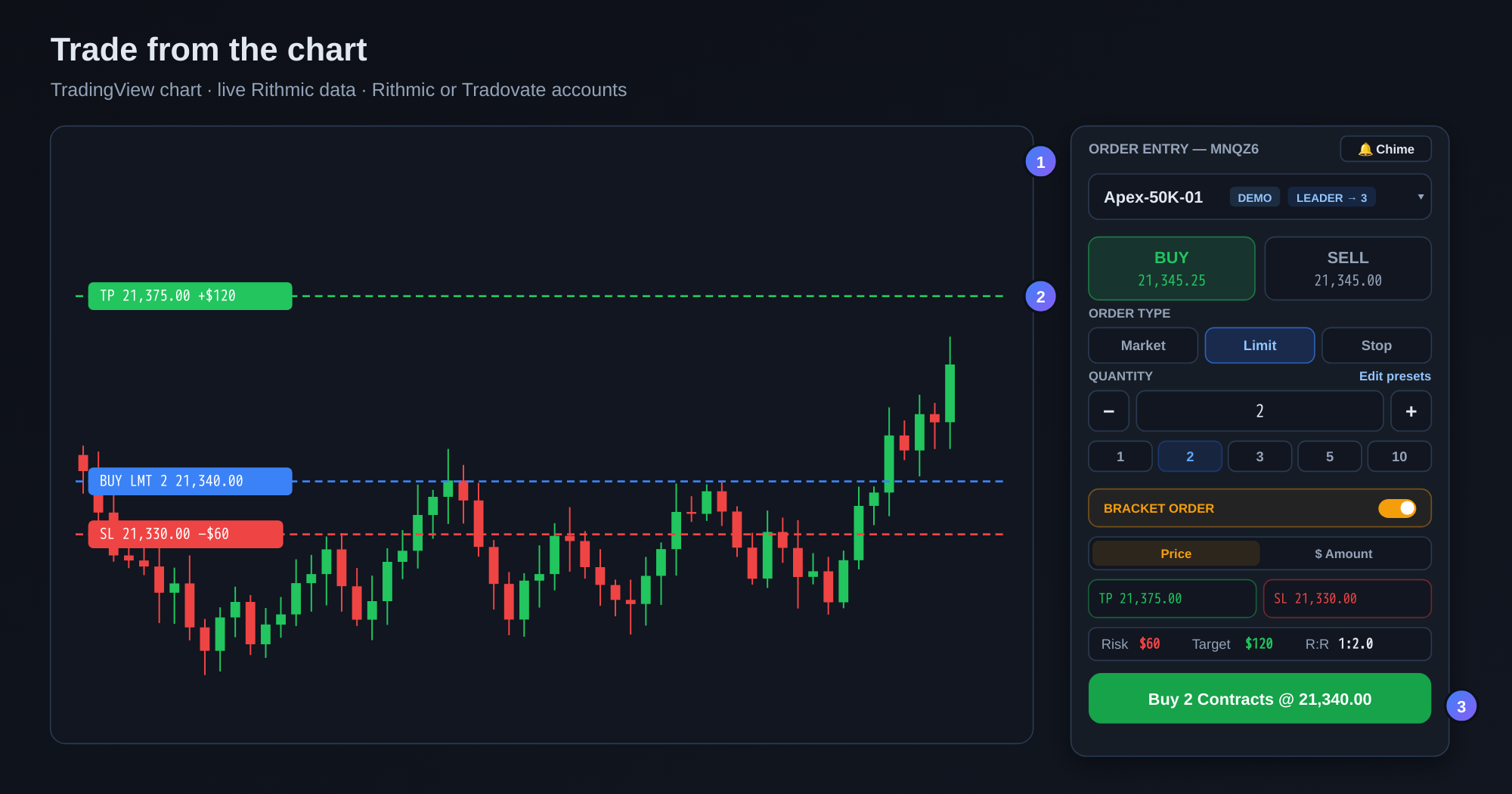
How to Trade From the Chart: Order Entry, Brackets and TP/SL
Category: App Pages | Last updated: 2026-10-06 | Reading time: 10 min read
What Is Chart Trading?
Chart trading lets you place, move and protect futures orders directly on a TradingView chart inside Signal Trade App. The chart runs on live Rithmic market data, and you can trade any of your connected accounts from it, Rithmic or Tradovate. If the account you trade is the leader of a copy group, every order you place on the chart is copied to its followers, the same way a trade placed in your broker platform is.
This guide covers the whole page: the order entry panel, placing and dragging orders on the chart, protecting a position with multiple targets, breakeven and trailing stops, fill alerts, and the Orders, Filled and Positions panels.
What You Need
| Requirement | Why | How to get it |
|---|---|---|
| One Rithmic account | The chart and its live data come through Rithmic, so the chart page opens once one is connected. | A prop firm account (most offer Rithmic; Apex Trader Funding has Rithmic accounts from $17/month), a free Rithmic demo from your futures broker, or a live Rithmic account. |
| Any account to trade | Once the chart is unlocked you can trade Rithmic and Tradovate accounts from it. | Connect them on the Connections page. |
| Managed protection (optional) | Needed for multiple TP/SL legs, stop to breakeven, auto-breakeven and the candle trailing stop. | Flip the switch in the order panel, or in Settings, while you are flat. |
New to connecting brokers? See the Connections guide first.
The Order Entry Panel
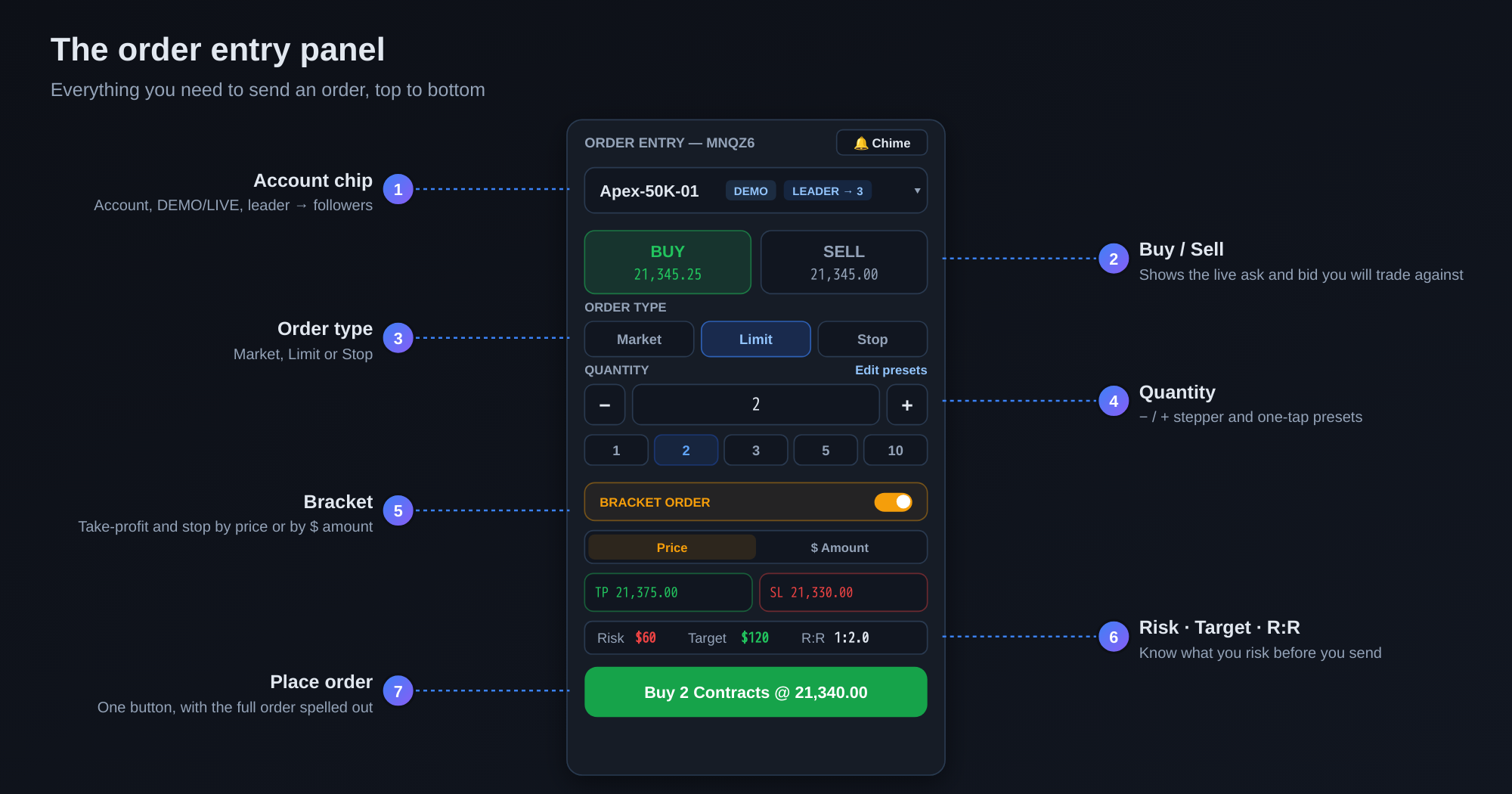
The panel on the right of the chart is where you build an order. It reads top to bottom:
- Account chip. Shows the account you are about to trade, whether it is DEMO or LIVE, and for a group leader how many followers will copy the order (for example Leader → 3). Tap it to switch account or group.
- Buy / Sell. Each button shows the live price you trade against: Buy shows the ask, Sell shows the bid.
- Order type. Market, Limit or Stop. For Limit and Stop, type a price or drag the line on the chart.
- Quantity. Use the − / + stepper or tap a preset. Click Edit presets to set your own one-tap sizes.
- Bracket. Switch on Bracket Order to attach a take-profit and stop-loss. Set them by price, or switch to $ Amount and enter your risk and target in dollars; the app works out the prices.
- Risk · Target · R:R. A one-line summary of what the bracket risks, what it targets and the reward-to-risk ratio, before you send.
- Place order. The button spells out the full order, for example Buy 2 Contracts @ 21,340.00.
Use the 🔔 menu at the top of the panel to pick a fill sound: Chime, Ding, Bell, Beep, Pop or Off. Buys play slightly higher than sells, so you can hear which side filled.
Placing Orders From the Chart
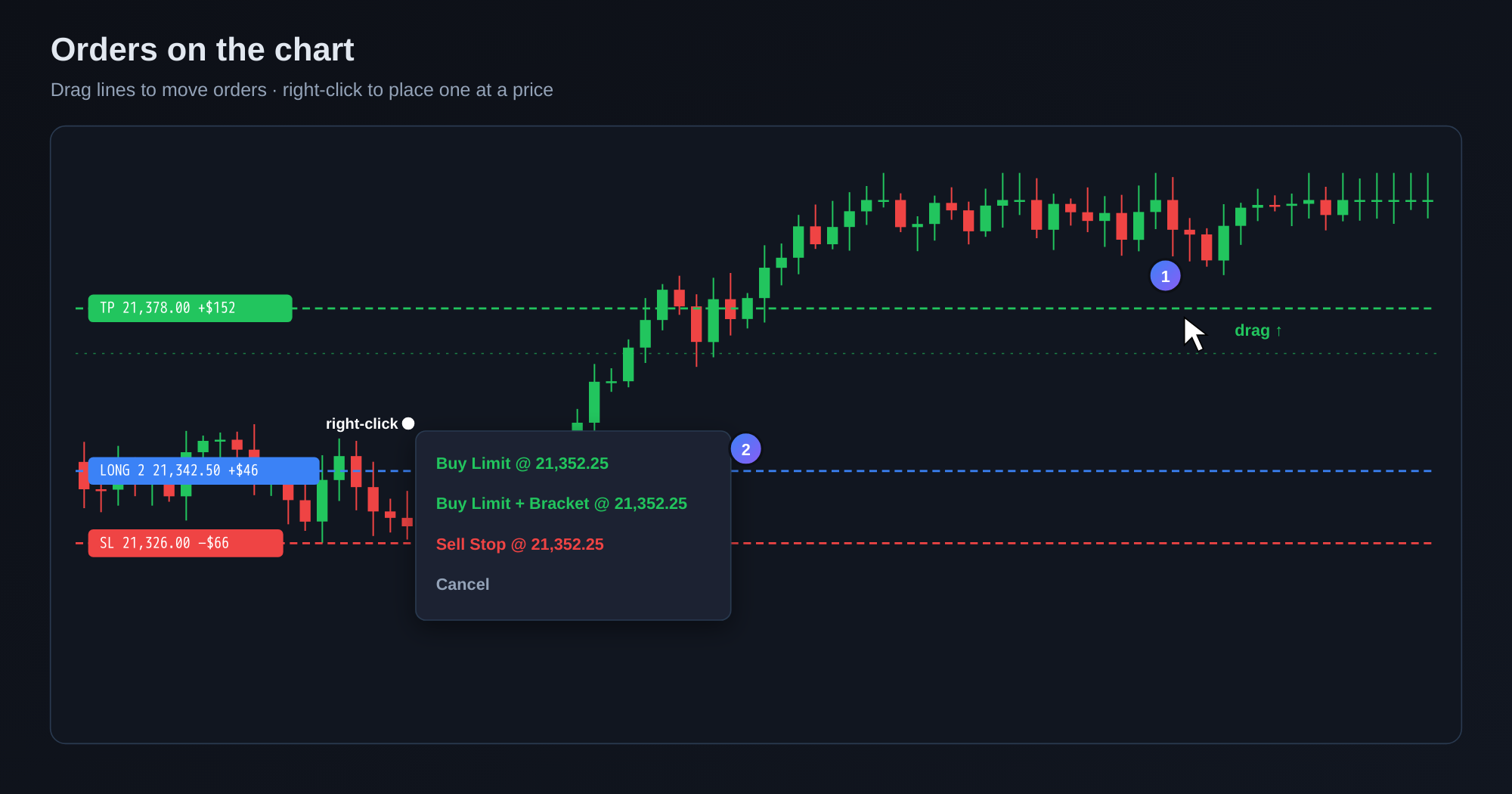
Right-click to place an order at a price
Right-click anywhere on the chart and the menu offers orders at that exact price. Below the market you get Buy Limit, Buy Limit + Bracket and Sell Stop; above the market you get Sell Limit, Sell Limit + Bracket and Buy Stop. The order is filled into the ticket so you can check it, then you place it with the button.
Limits and stops near the market
- Limit orders can sit right next to the market, one tick away if you like.
- Stop orders that are too close to the market are nudged a little away so the broker accepts them, and a message tells you the new price.
- A take-profit dragged through the market would fill immediately, so the app asks you to confirm first.
Moving Orders on the Chart
Every working order, take-profit and stop-loss is drawn as a line with its price, and protective lines also show what they lock in or risk in dollars (losses in red with a minus sign). To change an order, drag its line to the new price and let go. A large move asks you to confirm before anything is sent to the broker.
You can also edit orders from the Open Orders panel under the chart; see Orders, Filled and Positions below.
Protecting a Position
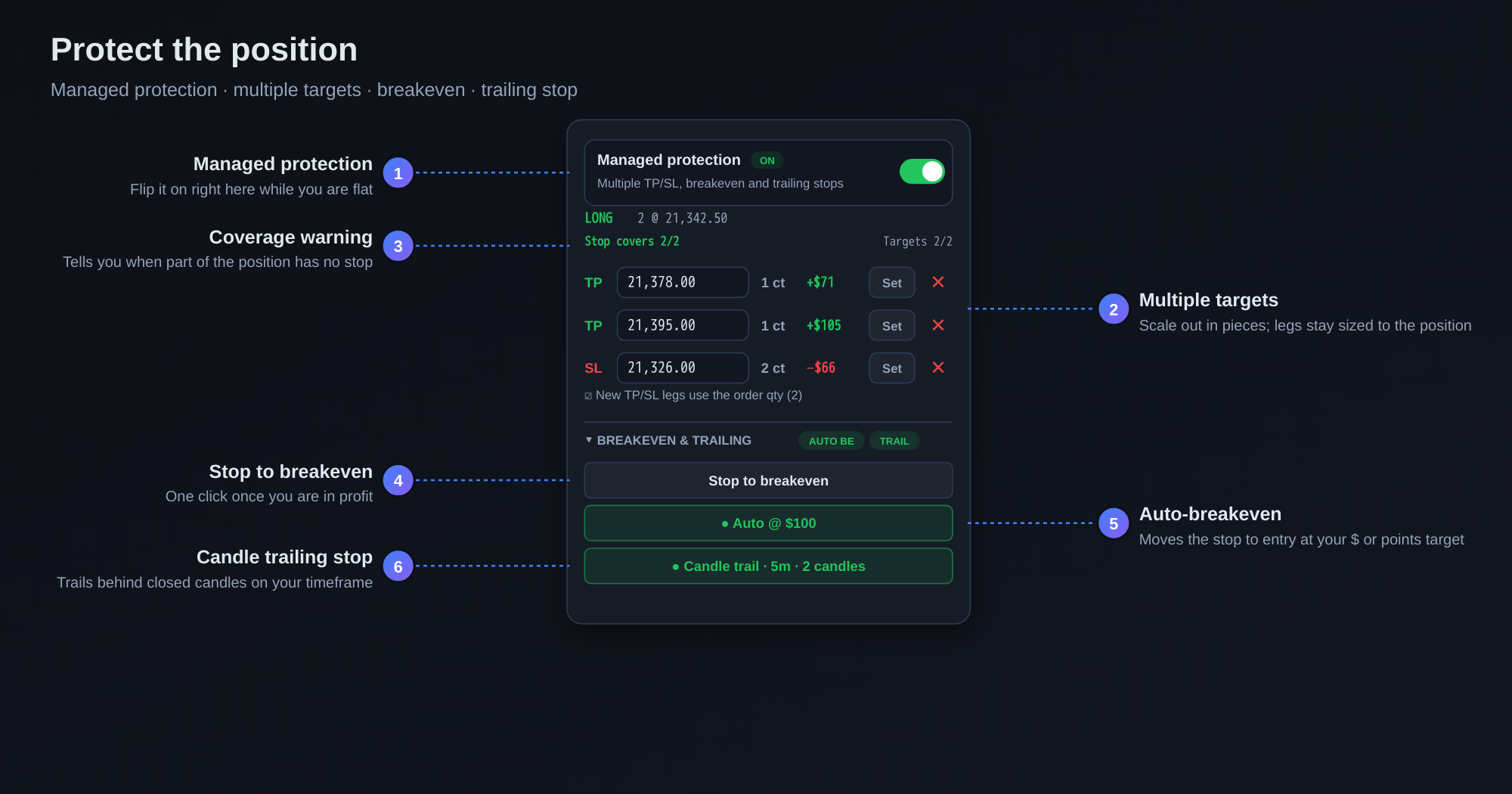
While you hold a position in the chart symbol, the order panel shows a position box with the side, size and average price, and a coverage line such as Stop covers 2/2. If part of the position has no stop, it warns you in amber: No stop — 1 contract unprotected.
Managed protection
The advanced tools below need Managed protection. Turn it on with the switch at the top of the position box or in the order panel, or under Settings → Managed protection. You can only switch it while you are flat (no open positions and no working orders); if you are not, the switch is locked and lists what is still open. With it on, the app links each stop to its target, keeps them sized to your position, and cancels what is left when you go flat.
Multiple take-profits and stops
- Type a price in the empty TP or SL row and press + to add a leg. Add more legs to scale out in pieces.
- Change a leg by editing its price and pressing Set; remove it with ✕.
- Each leg shows its size and the dollars it locks in or risks.
- Tick New TP/SL legs use the order qty to size each new leg from the quantity box instead of splitting the side evenly.
Breakeven and trailing stops
Open Breakeven & trailing in the position box. Green badges show what is armed even when the section is folded.
- Stop to breakeven moves the whole stop to your entry price in one click. It is available once the position is in profit.
- Auto-breakeven does the same move by itself when the trade reaches your profit amount, set in $ or points. The amount is remembered per contract.
- Candle trailing stop trails your stop behind the last closed candles. Pick the timeframe (1m, 5m, 15m, 30m or 1h) and how many candles to measure over. It needs a stop to trail.
Fill Alerts and Executions
Every fill on the selected account pops up as a message, for example Filled: Bought 2 MNQZ6 @ 21,345.25, and plays your fill sound. Fills are also drawn on the chart as TradingView execution markers; hover one to see the side, size and price. Toggle them with Executions above the bottom panels.
Orders, Filled and Positions
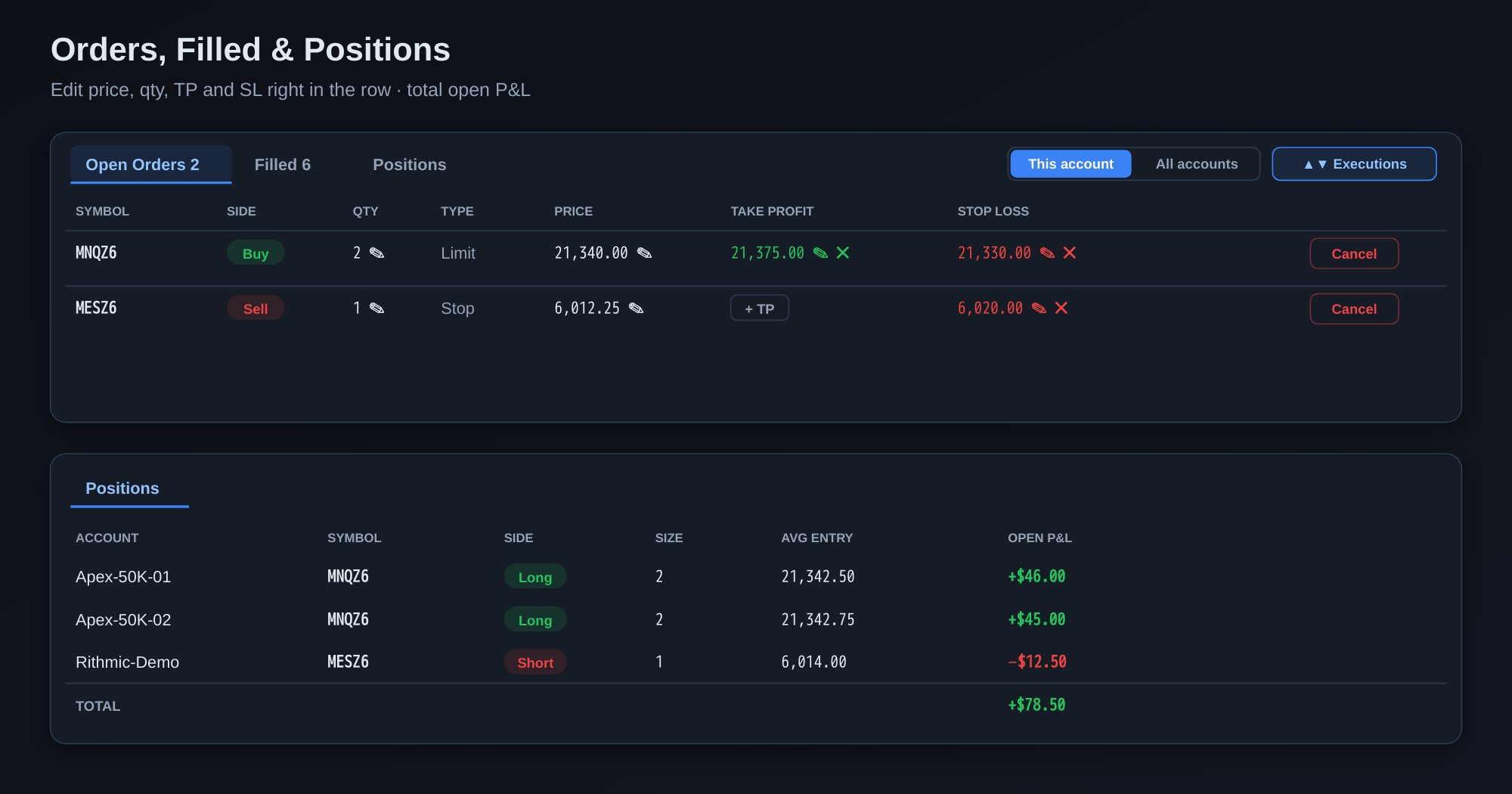
- Open Orders: change the price (✎ next to the price), quantity (✎ next to the quantity), take-profit or stop-loss (✎ to edit, ✕ to remove, + TP / + SL to add), or cancel the order. Cancel asks for a second click.
- Filled: your fills with time, side, quantity, order type and fill price.
- Positions: side, size, average entry and open P&L, with a total row when you hold more than one.
- Switch between This account and All accounts at the top right of the panel.
At the bottom of the order panel, Flatten account and Cancel all orders act on the selected account; each asks for a second click.
Trading From Your Phone
On a phone, the chart shows a trade bar just above the bottom menu with Market Buy and Market Sell, plus Limit, Stop and Bracket and the quantity. Pick a type, drag the preview line to your price, then tap Trade to send it.
Copy Trading From the Chart
If the selected account leads a copy group, orders you place, move or cancel on the chart are copied to every follower using each follower's ratio, exactly like trades placed in your broker platform. The account chip shows Leader → N so you always know when an order will be copied. Learn more in Copy Trading OCO and Bracket Orders.
Important Disclosures
When Managed protection is on, Signal Trade App, not your broker, handles your stops and brackets: linking each stop to its target, cancelling the other side when one fills, resizing, breakeven and trailing moves. Your stops and targets still sit at your broker as real orders, but if our servers or your broker connection are down, those changes may not happen. Signal Trade App is not responsible for any orders or trades that are not placed, changed, cancelled or executed.
Futures trading involves substantial risk of loss and is not suitable for every investor. Internet, broker, exchange and platform outages, delays and rejections can happen, and the price you see may differ from your fill. Practise on a demo account first and always keep a way to manage your positions in your broker's own platform. Read the full Risk Disclosure and Terms.
Frequently Asked Questions
Do I need a Rithmic account to trade from the chart?
You need one Rithmic account connected to open the chart, because the chart's live data comes through Rithmic. After that you can trade any of your accounts from it, including Tradovate accounts.
Where do I get a Rithmic account?
Most futures prop firms offer Rithmic accounts, and Apex Trader Funding has them from $17/month. You can also ask your futures broker for a free Rithmic demo, or use a live account from any broker that clears through Rithmic.
Why can't I add a second take-profit or move my stop to breakeven?
Those tools need Managed protection. Turn it on with the switch in the order panel while you are flat. If the switch is greyed out, close the positions and working orders it lists, then try again.
Can I place a limit order right next to the market?
Yes. Limit orders are not pushed away from the market. Only stop orders that are too close are moved slightly so the broker accepts them.
Will my orders be copied to my follower accounts?
Yes, if the selected account is the leader of a copy group. The account chip shows how many followers will copy the order.
Does the chart remember my drawings and tool settings?
Yes. Your TradingView drawing tools, styles and favourites are saved in your browser and restored the next time you open the chart.
Start Copy Trading Free
Signal Trade App lets you copy one trade across unlimited futures accounts in under 50ms. Sign up free with a 5-day Pro trial (credit card required, no charge during trial).