Trade Directly From a TradingView Chart With Drag-and-Drop Orders
Category: Tutorial | Date: 2026-07-02
Trading From the Chart Instead of an Order Ticket
Most trading platforms separate the chart from the order ticket. You watch price action on one panel and place or adjust orders in a completely different window — clicking between the two, re-entering prices, and losing a beat every time the market moves while you switch focus. Signal Trade App's /chart page removes that separation. It runs a real TradingView charting_library integration — the same charting engine used across professional trading platforms — with entry, take-profit, and stop-loss orders rendered directly as draggable lines on the price axis.
How Drag-to-Modify Works
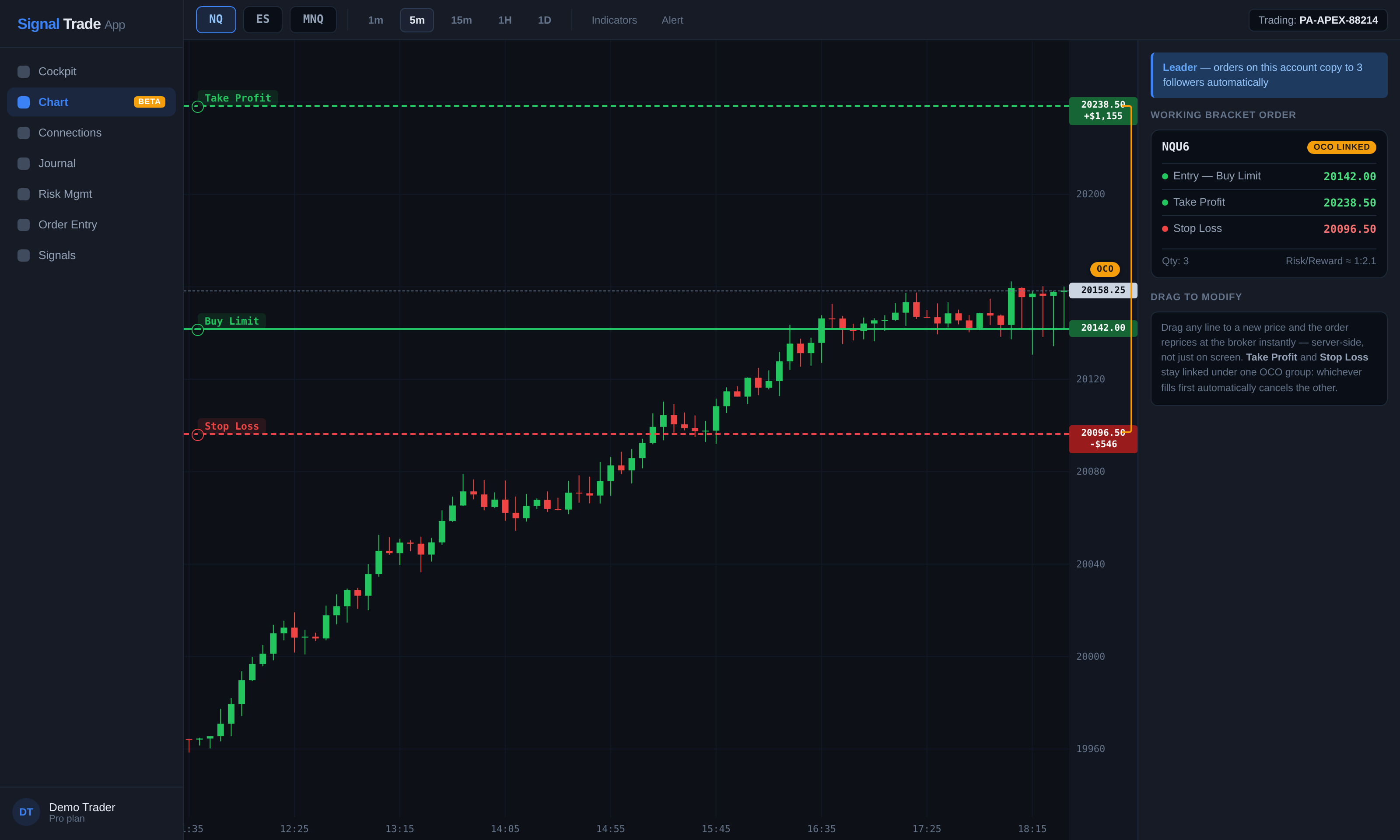
Place a bracket order and three lines appear on the chart: your entry, your take-profit, and your stop-loss, each sitting at its working price. Grab any line and drag it to a new level, and the drag is not a cosmetic preview — it triggers a real server-side reprice. Under the hood, this is a delete-and-recreate round trip against the broker: the old order is cancelled and a new one is placed at the price you dragged to. The line on the chart always reflects the order actually resting at your broker, not an approximation.
This matters most in fast markets. If NQ is ripping through your take-profit level and you want to trail your stop tighter, you drag the stop-loss line up and it reprices at the broker within the same round trip — no separate modal, no re-typing a price, no switching to a different window to find the order and edit it.
OCO Enforcement Is Automatic
Every bracket placed on /chart has its take-profit and stop-loss linked under a shared OCO (one-cancels-other) group. When one leg fills, the paired leg is cancelled automatically, server-side — whether the fill happened while you were watching or away from the screen. You never end up with a stale stop-loss resting on a position that already closed. For a full explanation of why this matters, especially under prop firm daily loss limits and trailing drawdowns, see bracket & OCO orders explained.
What This Looks Like in Practice
- Place a bracket: buy entry, take-profit, and stop-loss all submit together as one linked group.
- Watch price approach your take-profit and decide you want more room — drag the take-profit line further out; the order reprices at the broker immediately.
- Price reverses instead — drag the stop-loss line closer to reduce risk; same server-side reprice.
- One leg fills. The other is cancelled automatically. No manual cleanup, no resting orphan order.
/chart vs /charting
Signal Trade App has two separate chart pages, and they are not interchangeable. /chart is the TradingView drag-and-drop experience described in this article: real TradingView charting, draggable bracket lines, server-side repricing on drag, and automatic OCO enforcement. /charting is a different, newer page built on a different charting library, with a different order-management model — it explicitly does not support dragging a live order's stop-loss or take-profit, and points you to Cockpit's Protect panel instead for adjusting protective orders on that page. If drag-and-drop bracket trading on a TradingView chart is what you are looking for, /chart is the page to use.
Chart Trading and Copy Groups
/chart trading is manual and discretionary — you are managing your own account's orders directly. If you also run copy groups and want your chart-traded brackets to propagate to follower accounts automatically, that is a related but separate capability. Full bracket and OCO propagation to followers is currently rolling out to a limited allowlist. Email support@signaltradeapp.com to request early access.
Who This Is For
Discretionary futures traders who watch price action and adjust their plan in real time get the most out of chart trading on /chart — scalpers trailing a stop as a move develops, swing traders extending a target when momentum continues, and anyone who finds a separate order ticket slows them down at the exact moment speed matters.
Try It
Chart trading on /chart is currently rolling out to a limited allowlist while access expands. Email support@signaltradeapp.com to request access — once enabled on your account, connect a broker account, open /chart, and place your first bracket directly on the chart to see the drag-to-modify and OCO enforcement in action.
Frequently Asked Questions
Is Signal Trade App's chart trading built on real TradingView?
Yes. The /chart page is a genuine TradingView charting_library integration, not a lookalike. Order management is built directly onto that TradingView chart as draggable price lines.
What happens when I drag an order line on the chart?
The drag triggers a server-side reprice — a delete-and-recreate round trip against the broker — so the order resting at your broker always matches the price shown on the chart line.
Does OCO still work when I drag a bracket leg?
Yes. Take-profit and stop-loss stay linked under a shared OCO group regardless of dragging. When one leg fills, the other is cancelled automatically, server-side.
What is the difference between /chart and /charting?
/chart is the TradingView drag-and-drop page described in this article. /charting is a separate, newer page on a different charting library that does not support dragging a live order's stop-loss or take-profit — it directs you to Cockpit's Protect panel for that instead.
Can I use chart trading with copy groups?
Chart trading itself is manual and account-specific. Propagating chart-traded brackets to follower accounts in a copy group is a related capability currently rolling out to a limited allowlist — email support@signaltradeapp.com to request early access.
Does chart trading work for Topstep-funded accounts?
No. Signal Trade App does not connect to Topstep or TopstepX accounts, and Topstep's terms require trading to originate from your personal device. /chart works with connected Tradovate and Rithmic accounts; it is currently in limited early access, so email support@signaltradeapp.com to request it.
Start Copy Trading Free
Signal Trade App lets you copy one trade across unlimited prop firm accounts in under 50ms. Sign up free with a 5-day Pro trial (credit card required, no charge during trial).
Related Reading
- Help Center — Setup guides, broker connections, and risk management
- Supported Platforms — Tradovate, NinjaTrader, TradingView, and more
- Blog — More guides on copy trading, prop firms, and futures automation