Quick Order Entry for Futures: Trade Multiple Prop Firm Accounts at Once
Category: Platforms | Date: 2026-06-23
The Multi-Account Order Entry Problem
If you run more than a couple of prop firm accounts, you have felt the pain. Tradovate's group trading interface requires you to configure account groups, assign permissions, and navigate nested menus just to place a single order across multiple accounts. NinjaTrader users face a similar workflow through workspace configurations. The result is the same: by the time you have the order set up across five accounts, the entry is gone.
Most traders solve this by using a trade copier with leader/follower groups. That works well for automated replication, but sometimes you want to place a discretionary trade directly on a specific account or set of accounts without touching a copy group at all.
That is the gap Quick Order Entry fills.
What Is Quick Order Entry?
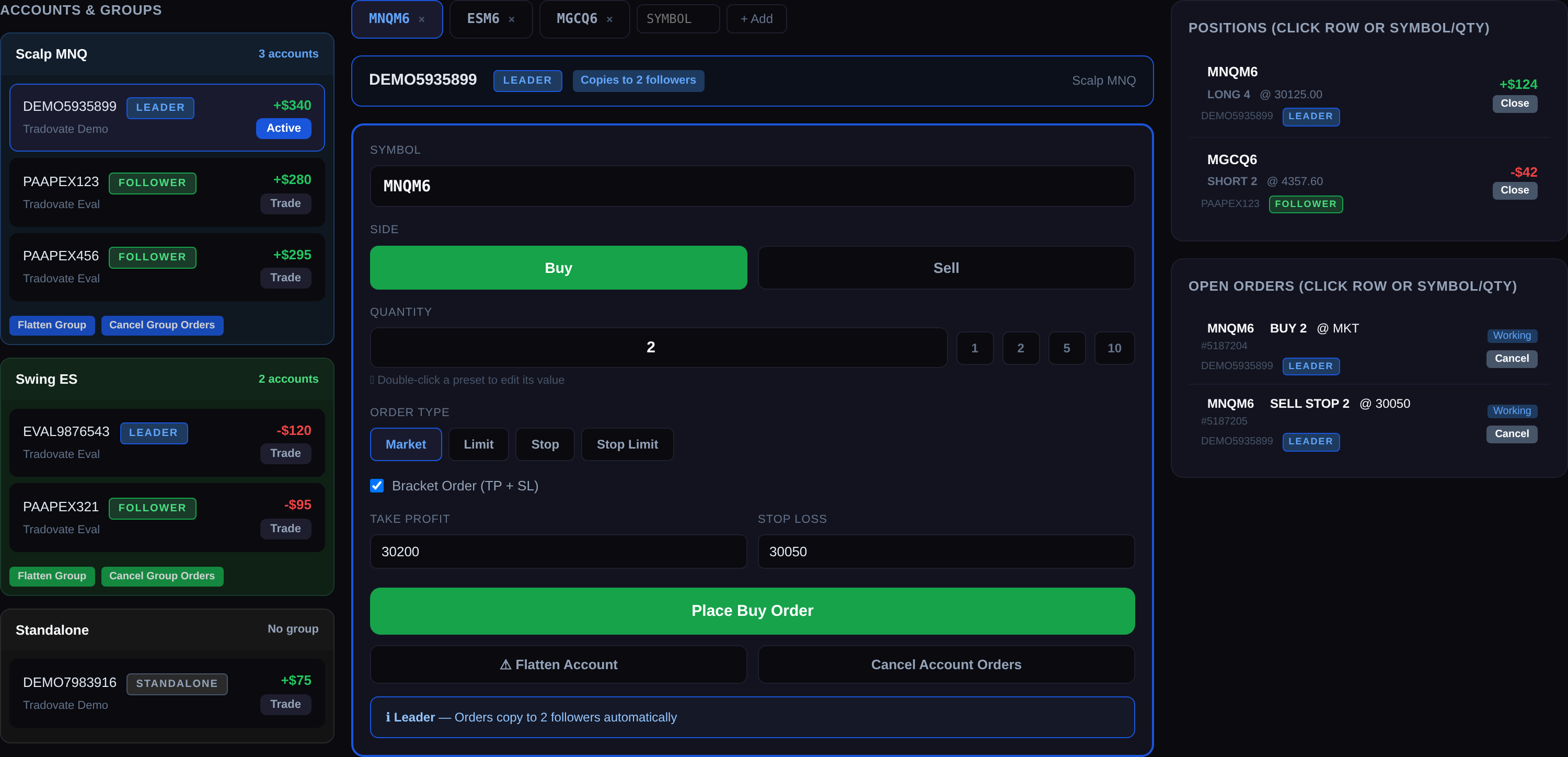
Quick Order Entry is a built-in order panel inside Signal Trade App that lets you select any connected account, pick a symbol, and place an order in seconds. Every account you have connected — Tradovate, Rithmic, NinjaTrader — appears in one organized sidebar, grouped by your existing copy groups.
The core workflow is straightforward:
- Open Order Entry from the sidebar.
- Your accounts appear in the left panel, organized by group. Each group card shows the account name, broker, role (Leader, Follower, or Standalone), and live P&L.
- Click any account to make it the active trading target. A color-coded banner confirms which account is selected and whether it is a Leader (copies to followers), Follower (trades only this account), or Standalone.
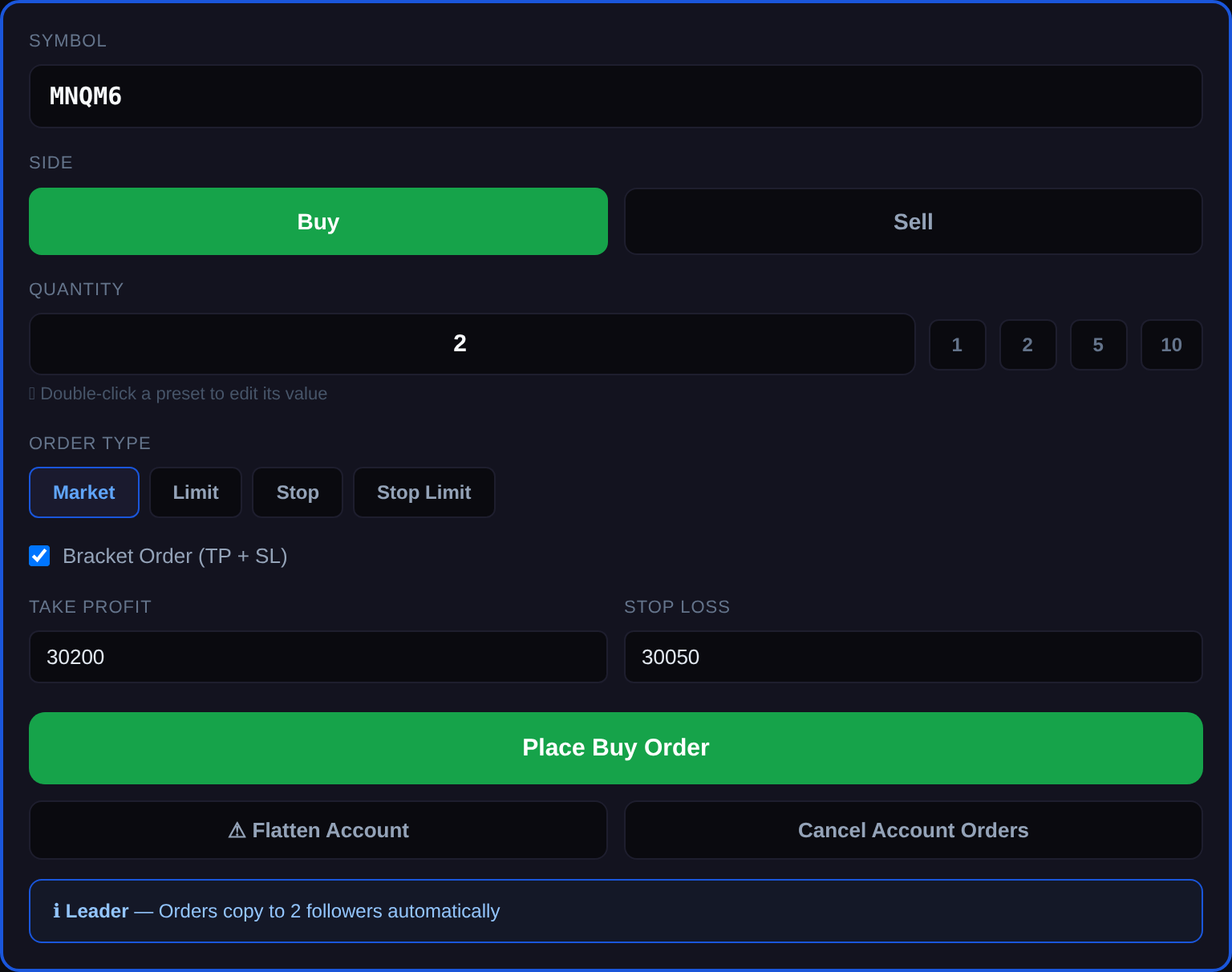
- Select your symbol from the tab bar, set quantity via presets, choose your order type, and add optional bracket parameters.
- Click Place Order. Done.
Trade a Whole Group or a Single Account
This is the feature that Tradovate group trading tries to solve but overcomplicates. In Quick Order Entry:
- <strong>Trade via a Leader account</strong> and the order automatically copies to all followers in that group. The UI tells you exactly how many followers will receive the copy.
- <strong>Trade a Follower directly</strong> and the order only affects that one account. No copy propagation.
- <strong>Trade a Standalone account</strong> and it operates independently.
You choose the behavior by selecting which account to trade. There is no separate group mode versus individual mode switch. The system knows the account's role and acts accordingly.

Why This Beats Tradovate Group Trading
Tradovate's native group setup requires you to create account groups inside the Tradovate platform, configure group permissions, and then trade through a group-specific order entry. If you run accounts across multiple prop firms on Tradovate, each firm's accounts may need separate group configurations. Adding a new account means reconfiguring the group.
Quick Order Entry sidesteps all of that:
- <strong>No group configuration required inside your broker.</strong> Your copy groups in Signal Trade App already define the relationships. Quick Order Entry reads them directly.
- <strong>Cross-broker support.</strong> Your groups can contain Tradovate, Rithmic, and NinjaTrader accounts together. Tradovate group trading only works within Tradovate.
- <strong>One-click account switching.</strong> Click an account, place an order. No menu navigation, no group selection dropdowns, no permission dialogs.
- <strong>Live P&L visibility.</strong> Every account in the sidebar shows its unrealized P&L in real time, so you can see at a glance which accounts are in profit and which need attention.
This does not replace Tradovate's native order entry for single-account traders. But if you are managing five, ten, or twenty accounts across prop firms, the difference in speed and simplicity is significant.
Full Order Types and Bracket Support
Quick Order Entry is not a simplified order ticket. It supports the full range of order types:
- <strong>Market orders</strong> for immediate execution.
- <strong>Limit orders</strong> with a specified price.
- <strong>Stop orders</strong> for breakout or protection entries.
- <strong>Bracket orders</strong> with take-profit and stop-loss levels, which copy to followers when trading through a Leader.
Quantity presets let you set one-click size buttons — 1, 2, 5, and 10 by default. Double-click any preset to customize it per symbol. If you scalp MNQ at 2 contracts but swing ES at 1, each symbol remembers its own presets.
Position and Order Management in One View
The right panel shows all open positions and working orders across every connected account. Each position displays the symbol, side, quantity, average price, and unrealized P&L. Click any position row to pre-populate the order form with the closing direction and quantity, so closing a position is two clicks: click the position, click Place Order.
Open orders show status (Working, PartialFill), price, and account name. Cancel any order with a single click plus confirmation.
Group-level actions are available on each group card:
- <strong>Flatten Group</strong> closes all positions on every account in the group.
- <strong>Cancel Group Orders</strong> cancels all working orders across the group.
Account-level actions are available for the selected account:
- <strong>Flatten Account</strong> closes all positions on the active account.
- <strong>Cancel Account Orders</strong> cancels all working orders on the active account.
Both use a double-click confirmation pattern to prevent accidental execution.
Symbol Tabs and Custom Presets
Traders who watch multiple instruments can add symbol tabs along the top of the order form. The default tabs include MNQ, ES, and MGC futures, but you can add any symbol your broker supports. Tabs are drag-and-drop reorderable so you can arrange them by priority.
Each symbol maintains its own quantity presets. If you trade MNQ with larger size than ES, your presets reflect that automatically without manual switching.
Who Should Use Quick Order Entry
Quick Order Entry is built for a specific workflow. It makes the most sense if you:
- Run multiple prop firm accounts and want to place discretionary orders without switching between broker platforms.
- Use copy groups but sometimes need to trade individual accounts directly — for example, scaling into a position on one specific account.
- Want a faster alternative to Tradovate's group trading or NinjaTrader's workspace-based multi-account setup.
- Need real-time position visibility across all accounts while placing orders.
If you trade a single account on a single broker, your native platform's order entry is probably sufficient. Quick Order Entry is purpose-built for the multi-account trader.
Comparison: Quick Order Entry vs. Broker Group Trading
| Feature | Signal Trade App | Tradovate Groups | NinjaTrader Multi-Account |
|---|---|---|---|
| Cross-broker support | Yes (Tradovate, Rithmic, NinjaTrader) | No (Tradovate only) | No (NinjaTrader only) |
| Group setup in broker required | No | Yes | Yes (workspace config) |
| One-click account switching | Yes | No | No |
| Live P&L per account | Yes | Limited | Limited |
| Bracket order support | Yes | Yes | Yes |
| Cloud-based (no desktop) | Yes | Web or desktop | Desktop only |
| Works with all major prop firms | Yes | Tradovate-based firms only | NinjaTrader-based firms only |
Getting Started
Quick Order Entry is available now in BETA for all Signal Trade App users. To access it:
- Log in to Signal Trade App and look for <strong>Order Entry</strong> in the sidebar (marked with a NEW badge).
- Connect at least one broker account if you have not already.
- Start placing orders across any of your connected accounts.
The feature is included in all plans at no extra cost. Plans start at $30 for the first month, then $15/month for unlimited accounts. A 5-day free trial is available (credit card required, no charge during trial).
Frequently Asked Questions
Does Quick Order Entry replace copy groups?
No. Copy groups handle automatic trade replication. Quick Order Entry is for placing discretionary orders on specific accounts. They work together — if you place an order on a Leader account via Quick Order Entry, it still copies to all followers in that group.
Which brokers are supported?
All brokers that Signal Trade App connects to: Tradovate, Rithmic, and NinjaTrader. That covers prop firm accounts that run on Tradovate or Rithmic, such as Apex, Take Profit Trader, MyFundedFutures, and Lucid Trading. Topstep and TopstepX are not supported.
Is there a per-account fee?
No. Quick Order Entry is included with your Signal Trade App plan. There is no limit on the number of accounts you can trade through it.
Can I use it on mobile?
Yes. Signal Trade App is a web application that works on any device with a browser, including phones and tablets.
Is the feature stable for funded accounts?
Quick Order Entry is currently in BETA. We recommend testing with demo or evaluation accounts first, then moving to funded accounts once you are comfortable with the workflow.
Start Copy Trading Free
Signal Trade App lets you copy one trade across unlimited prop firm accounts in under 50ms. Sign up free with a 5-day Pro trial (credit card required, no charge during trial).
Related Reading
- Help Center — Setup guides, broker connections, and risk management
- Supported Platforms — Tradovate, NinjaTrader, TradingView, and more
- Blog — More guides on copy trading, prop firms, and futures automation